The Best Free Video Editors for Chromebook Users
ChromeOS has evolved significantly from a simple web-browsing interface into a capable environment for content creation. Whether you create TikTok videos, Instagram Reels, YouTube tutorials, or school projects, editing videos on a Chromebook is now straightforward and efficient.
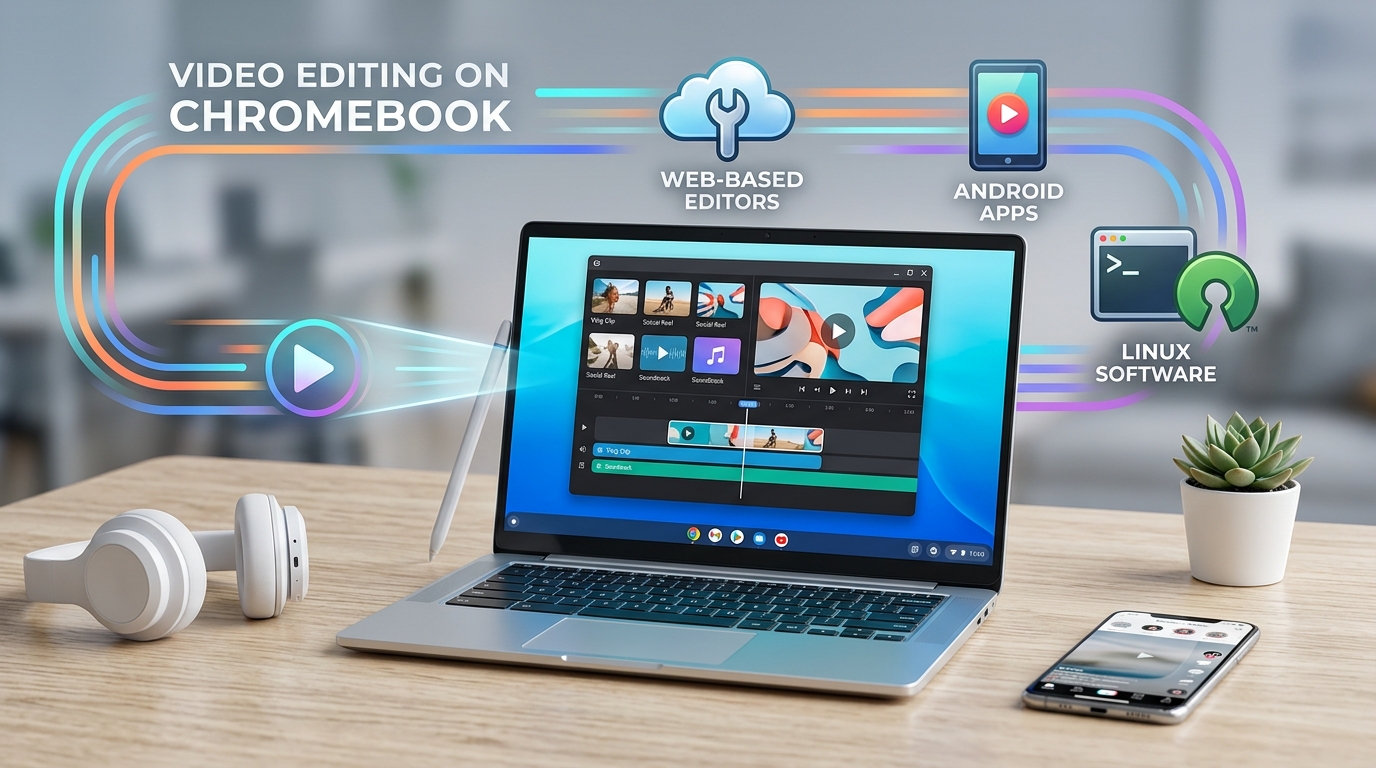
Since Chromebooks rely heavily on cloud architecture and lightweight hardware, choosing the right editing software depends on your device specifications and workflow preferences. You can edit videos on ChromeOS using web-based applications, Android apps from the Google Play Store, or desktop-grade Linux applications.
Web-Based Video Editors (Best for All Chromebooks)
Browser-based editors run directly inside Google Chrome, making them ideal for budget Chromebooks with limited storage or processing power. They rely on cloud processing or modern browser technology to render timeline edits smoothly.
Clipchamp
Clipchamp is a user-friendly browser video editor that offers native 1080p exports on its free tier without watermark restrictions. It features a traditional multi-track timeline where you can trim clips, apply transitions, add motion text, and import stock music. Because performance relies on local browser rendering, it works reliably across almost all modern ChromeOS devices.
CapCut Web
CapCut Web provides a robust feature set tailored for social media creators. It offers free access to trending effects, auto-captioning, background removal, and aspect ratio presets designed for TikTok and Instagram Reels. The web interface eliminates the need to install heavy software while offering advanced timeline features.
WebGPU and Browser-Based Rendering
Modern web editors increasingly use technologies like WebGPU and WebAssembly. These tools allow your Chrome browser to leverage graphics hardware directly, accelerating export times and preview playback without demanding heavy local system installations.
Android App Editors (Best for Touchscreen Chromebooks)
If your Chromebook supports the Google Play Store and features a touchscreen or convertible hinge, Android video editing apps offer an intuitive experience similar to editing on a mobile device.
KineMaster
KineMaster brings multi-layer video editing to ChromeOS. It supports frame-by-frame trimming, keyframe animation, chroma key (green screen) effects, and precise audio control. While the free version includes a watermark on exported videos, its comprehensive toolset makes it a strong candidate for learning mobile video production.
PowerDirector
PowerDirector provides a desktop-style timeline layout optimized for tablet and touchscreen modes. It features speed controls, video stabilization, title templates, and transition effects. It works best on Chromebooks equipped with mid-range processors and at least 4 GB of RAM.
Linux Video Editors (Best for Advanced Users)
For creators needing full creative control without subscription limits, enabling the Linux environment (Crostini) on ChromeOS unlocks open-source, desktop-grade software.
Shotcut
Shotcut is a free, open-source video editor that runs smoothly via the Linux container on higher-spec Chromebooks. It supports native timeline editing, advanced audio filters, color grading, and a wide variety of video formats without watermarks.
Kdenlive
Kdenlive is another feature-rich open-source editor suitable for complex projects. It offers multi-track editing, customizable interface layouts, keyframeable effects, and flexible rendering options. Linux applications require a Chromebook with an Intel or AMD processor and sufficient local storage space.
Comparison of Chromebook Video Editing Options
How to Choose the Right Editor for Your Chromebook
Selecting the video editor comes down to three factors:
- Hardware Capabilities: Entry-level Chromebooks with ARM processors or limited RAM run web-based editors best. Intel Core or AMD Ryzen devices handle Linux applications with ease.
- Content Format: For short-form video content like Reels or TikToks, web editors with social media templates save time. For longer YouTube videos, multi-track timeline editors provide greater control.
- Offline Access: Web applications require an active internet connection for rendering and stock assets. If you need to edit while offline, consider Android or Linux alternatives.
FAQs
1. Can you edit videos on a Chromebook without downloading software?
Yes. Web-based video editors like Clipchamp and CapCut Web allow you to trim, edit, and export videos directly inside the Google Chrome browser without installing extra software.
2. Which free video editor for Chromebook has no watermark?
Clipchamp offers free 1080p video exports without a watermark. CapCut Web also lets users export projects free of watermarks when signed into an account.
3. Can Chromebooks run professional video editing software?
Chromebooks can run advanced open-source video editors like Shotcut and Kdenlive through the built-in Linux environment, provided the hardware meets performance requirements.
4. Do Android video editing apps work well on Chromebooks?
Android apps work well on Chromebooks that support the Google Play Store, especially devices with touchscreens or 2-in-1 convertible designs.
5. Why my Chromebook lagging while editing video?
Lag often occurs due to limited available RAM or heavy background browser tabs. Closing unused tabs, lowering preview playback resolution, or using cloud-based web editors can improve performance.