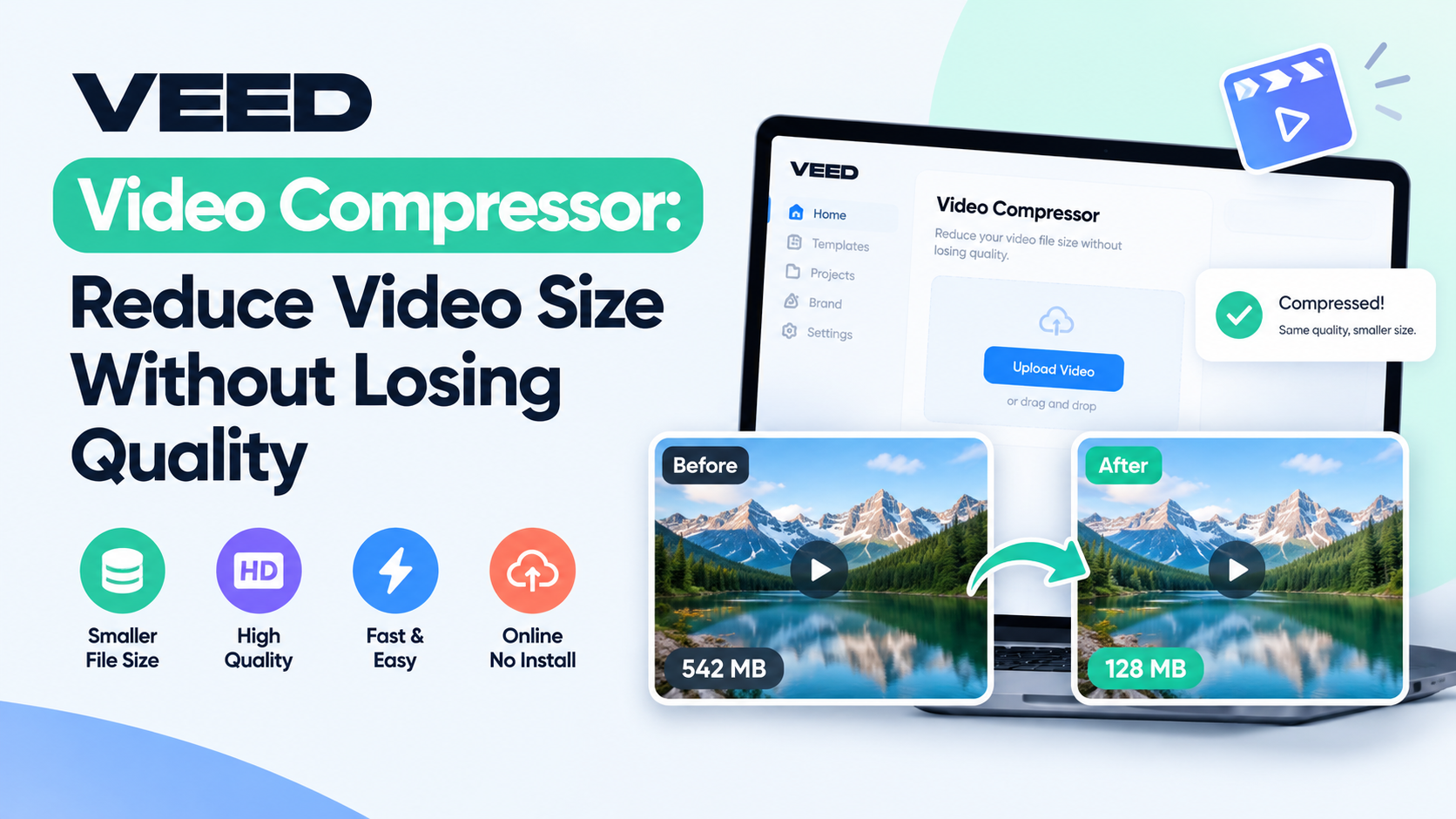
Creating professional video content for YouTube, TikTok, Instagram Reels, or corporate websites comes with a common bottleneck: managing massive file sizes. High-resolution footage—especially 4K or 60fps recordings—results in gigabytes of data that take hours to upload, fail email attachment limits, or slow down web page loading times.
A reliable online video compressor solves this friction point. Among web-based toolkits, the Veed video compressor has emerged as a popular option for content creators and marketers looking for a browser-based fix without installing heavy desktop software. This guide explores how it works, its features, and how to optimize your video files effectively.
Understanding the Video Compression Process
Before diving into a specific tool, it helps to understand what happens under the hood when a file is compressed. Video compression is the process of reducing the overall data footprint of a digital video file while preserving as much visual and audio fidelity as possible.
Digital videos consist of massive streams of image frames combined with audio tracks. To make these files manageable, compression algorithms use two main techniques:
- Spatial (Intraframe) Compression: Reduces data within a single frame by compressing blocks of similar pixels.
- Temporal (Interframe) Compression: Removes redundant data across consecutive frames by only recording the changes that occur from one frame to the next.
Key Features of Browser-Based Video Compressors
Cloud-hosted video reduction utilities typically offer a set of core features designed to simplify file management for digital creators:
- Browser-Based Convenience: Because the tool runs inside web browsers like Chrome or Safari, users do not need to download, install, or update desktop software like Adobe Media Encoder or HandBrake.
- Format Flexibility: Most online utilities accept standard container formats such as MP4, MOV, AVI, MKV, and WebM, converting them into optimized outputs.
- Customizable Sliders: Users can often adjust target file sizes, bitrates, or resolution outputs (e.g., scaling down from 4K to 1080p) to meet specific upload thresholds.
- Platform Presets: Built-in presets automatically configure the compression settings to match the strict upload specifications of social media channels, email clients, or messaging apps.
Step-by-Step Guide: How to Compress Videos Online
Using a web-based video compressor generally follows a streamlined workflow. Here is how you can process your media files efficiently:
- Prepare Your Export: Export your final edited video from your editor (such as Premiere Pro, DaVinci Resolve, or CapCut) in the highest necessary quality format, usually MP4 using H.264 or H.265 codecs.
- Navigate to the Tool: Open the video compression utility in your web browser.
- Upload the File: Drag and drop your video file into the designated upload area, or click to browse files on your local drive or cloud storage.
- Adjust Compression Settings: Choose your desired output quality or target file size. If you are targeting a specific platform like Instagram or TikTok, select the corresponding preset.
- Process and Download: Initiate the compression process. Once the server finishes rendering the optimized file, preview the results to ensure visual clarity is maintained, then download the final file to your device.
Evaluating Advantages and Limitations
While online video compressors offer undeniable convenience, creators should weigh their pros and cons before making them a permanent part of their post-production workflow.
Advantages:
- Accessibility: Accessible from any computer or operating system with an internet connection.
- Speed and Efficiency: Saves local storage space and accelerates upload times for cloud sharing or client reviews.
- User-Friendly Interface: Clean, drag-and-drop interfaces mean beginners can reduce file sizes without learning complex video engineering terms.
- Internet Dependency: Large video files require stable, fast upload and download speeds. Uploading a 4GB raw file over a slow connection can take longer than local rendering.
- Free Tier Restrictions: Many online platforms place watermarks on exported videos, limit maximum file upload sizes (e.g., capping free uploads at 500MB), or restrict high-resolution (4K) exports unless you subscribe to a paid tier.
- Privacy Considerations: Uploading sensitive or unreleased commercial footage to third-party cloud servers may present security concerns for enterprise or agency workflows.
Best Practices for Video Optimization
To get the best results when shrinking your video files, keep these practical guidelines in mind:
- - Check Platform Specifications: Before shrinking a file for a specific network (like YouTube or LinkedIn), check their recommended bitrate and resolution guidelines to avoid double-compression by the platform's native algorithms.
- Do a Quality Spot-Check: Always watch the compressed video from start to finish—paying close attention to fast motion scenes and gradients—to ensure compression artifacts or pixelation are not distracting.
FAQs
What causes a video file to be so large? Video file size is determined by resolution (e.g., 1080p vs. 4K), frame rate (e.g., 24fps vs. 60fps), duration, and bitrate. Higher bitrates mean more data is packed into every second of playback, resulting in superior quality but massive file sizes.
Does compressing a video reduce its resolution? Not necessarily. Compression can be achieved by lowering the bitrate (reducing data per second) while keeping the pixel dimensions (resolution) identical. However, lowering resolution (such as scaling from 4K to 1080p) is an effective way to drastically shrink file size.
Can I compress videos on my mobile phone? Yes. Many web-based compressors are mobile-responsive, allowing you to upload and shrink video files directly from iOS or Android browsers, or via dedicated mobile compression apps.
Is cloud-based video compression safe for commercial projects? Reputable platforms use encrypted connections for file transfers and delete files from their servers after a set period. However, for highly confidential enterprise projects, local desktop encoding tools are often preferred for strict data security compliance.