How to Merge Multiple Videos Online Without Watermark: The Complete Free Editing Guide
Combining multiple video clips into one continuous, high-definition story is one of the most foundational tasks in digital content creation. Whether you are stitching together holiday memories, assembling a YouTube compilation, curating Instagram Reels, or editing a corporate promotional video, merging footage should be fast, seamless, and completely accessible.
Yet for years, creators have encountered frustrating roadblocks: complicated desktop software that takes hours to download and configure, or predatory cloud tools that render unsightly watermarks over your hard work unless you enter a credit card. Now merge videos online free without watermark
In this definitive tutorial, you will discover how to use Aesthetic Edits—a 100% free video editor built for modern creators—to combine, trim, synchronize, and export pristine videos directly in your browser with zero watermarks.
1. Why Browser-Based Free Video Editing is Revolutionizing Content Creation
The landscape of multimedia production has fundamentally shifted. Gone are the days when joining three MP4 clips required a $2,000 workstation running heavy desktop software. Thanks to high-speed WebAssembly, modern Web Audio APIs, and high-performance server-side rendering pipelines, modern web applications can now deliver desktop-grade performance directly inside Google Chrome, Safari, Microsoft Edge, and Firefox.
Choosing a modern free online video editor over legacy desktop suites gives you substantial advantages:
- Instant Zero-Install Access: You do not need to download multi-gigabyte installer packages, configure graphics drivers, or worry about operating system incompatibilities. Whether you are on Windows, macOS, Linux, or a lightweight Chromebook, the editor initializes immediately in your browser tab.
- Genuine No Watermark Exports: Many commercial platforms advertise themselves as "free," only to slap a giant semi-transparent logo over your exported video at the final step. Aesthetic Edits is a true no watermark video editor, guaranteeing that your final 1080p and 720p MP4 files remain 100% clean and ready for professional publishing.
- Hardware-Agnostic Cloud Rendering: Video encoding is notoriously CPU and GPU intensive. By offloading the final rendering pipeline to optimized cloud processing clusters, your local computer stays cool and responsive without freezing or draining your battery.
- Streamlined Workflow for Aesthetic Video Edits: Traditional suites bury simple clip-joining tools under nested menus and complicated node trees. A dedicated free editor focuses on speed, clarity, and precision timeline controls, allowing you to produce viral aesthetic video edits in minutes instead of hours.
2. Essential Pre-Production: Preparing Your Video Clips
Before you drop your media onto the timeline, spending a few moments organizing your source files will ensure a frictionless editing experience:
Check Your Source Resolutions and Aspect Ratios
When you merge video clips recorded from different devices—for instance, combining iPhone vertical footage with horizontal DSLR clips—you must decide on a target aspect ratio. If you want a YouTube landscape video, standardize your target canvas to 16:9 (1920x1080). If you are creating content for TikTok, Instagram Reels, or YouTube Shorts, set your target to 9:16 (1080x1920).Verify File Formats and Codecs
Modern browser-based editors seamlessly handle standard video formats including MP4, WebM, and MOV containers encoded with H.264 or AAC audio. If you have files stored in obscure archival formats, quick conversion to standard MP4 ensures optimal playback smoothness during timeline scrubbing.Create a Logical Naming Structure
Rename your raw video files sequentially (e.g.,Scene-01.mp4, Scene-02.mp4, B-Roll-01.mp4). When importing dozens of clips, this simple habit saves valuable minutes during assembly.
3. Step-by-Step Tutorial: Merging Videos with Aesthetic Edits Free Editor
Follow this hands-on guide to merge multiple video clips from start to finish.
Step 1: Launch the Free Online Video Editor
Navigate to the Aesthetic Edits Editor by clicking the "Open Free Editor" button located in the top navigation bar. Unlike other platforms that demand email verification and credit cards, your editing workspace opens instantly in guest mode, ready for immediate action.Step 2: Import Your Video Assets
Drag and drop your video files directly from your desktop or file explorer onto the editor's media dropzone. Alternatively, click the Upload button to select multiple files at once. The editor inspects each clip's duration, resolution, and audio tracks, preparing visual preview thumbnails in real time.Step 3: Arrange Your Story on the Multi-Track Timeline
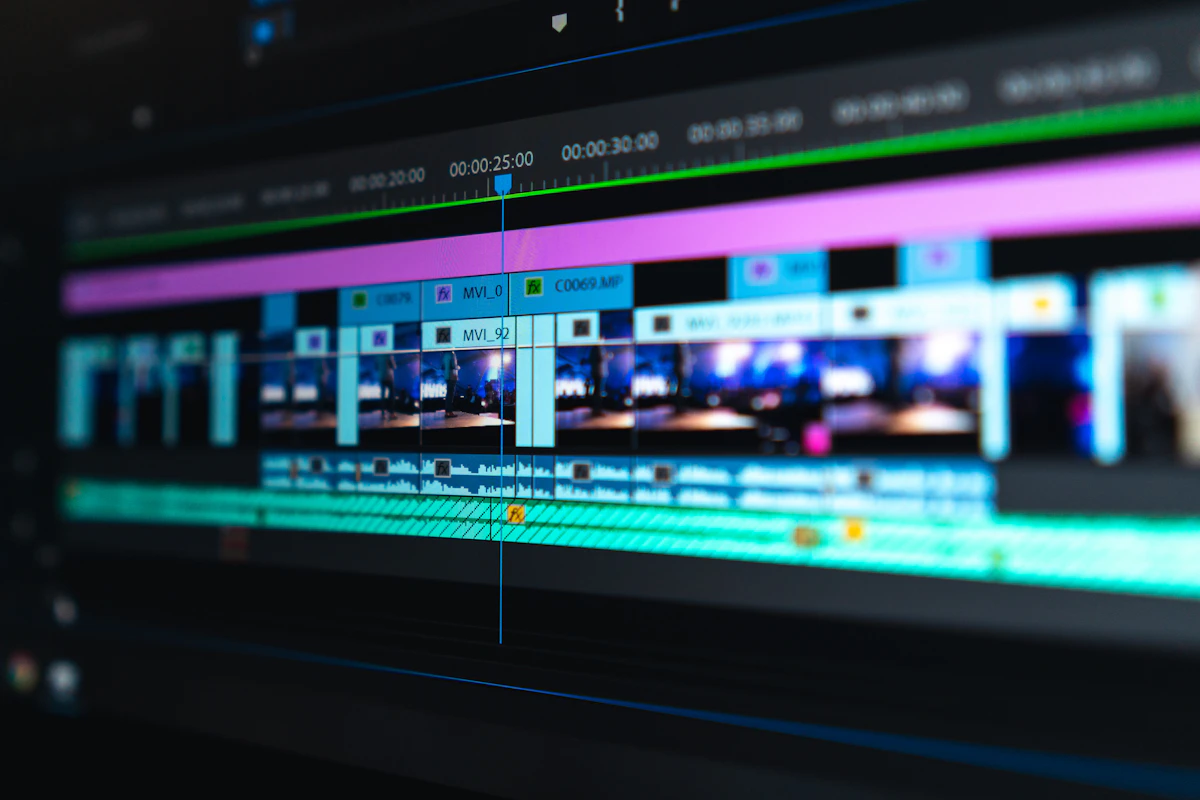
Once your clips appear in the project library, drag them onto the timeline tracks:- Sequential Ordering: Position clips side by side in the order you wish them to play. You can freely drag clips forward or backward along the timeline to experiment with narrative pacing.
- Snapping and Precision Alignment: The magnetic timeline automatically aligns adjacent clips to eliminate accidental micro-gaps and black frames.
Step 4: Trim Unwanted Footage with Precision Split Handles
Raw footage almost always contains awkward beginnings, camera shakes, or unnecessary pauses. Clean them up using two intuitive methods:
- Edge Trimming: Hover over the beginning or end of any timeline clip until the resize arrow appears, then drag inwards to trim head and tail footage nondestructively.
- Split Playhead Cutting: Position the timeline cursor exactly where you want to make an incision and press the Split button (or keyboard shortcut
S). This splits the clip into two independent segments, allowing you to delete the middle portion with a single click.
Step 5: Mix and Balance Background Audio
A truly engaging video requires balanced sound. If your source clips contain loud wind noise or irrelevant room chatter:
- Click the speaker icon on any timeline clip to mute its native audio track or lower its volume to 20%.
- Upload an MP3 or WAV background soundtrack and place it on the dedicated audio track beneath your video clips.
- Adjust the background track volume so that spoken dialogue remains crisp and intelligible.
Step 6: Choose Your Export Quality and Render Clean MP4
When you are satisfied with the preview playback, click the prominent Export Video button in the top right header:
- Select your target output: 1080p Full HD for pristine crispness or 720p HD for lightweight social sharing.
- Click Start Export. The cloud rendering engine will merge your clips, conform the color spaces, balance the audio, and render a high-bitrate MP4 file.
- Click Download to save your clean video directly to your hard drive—completely watermark-free.
4. Key Differences Between Free and Paid Editing Workflows
5. Pro Tips for Polished, Aesthetic Video Edits
To transform simple merged clips into a captivating visual piece that commands attention on social algorithms, apply these proven creator techniques:
- Cut on Kinetic Motion: When transitioning from one scene to another, execute your cut while the subject is in motion (e.g., turning a corner, stepping forward, or making a gesture). This hides the edit point and creates an unbroken optical flow.
- Harmonize Color Temperature: Inconsistent lighting between merged clips can break visual cohesion. Ensure that daytime outdoor clips and warm indoor scenes are graded with matching contrast curves for a signature aesthetic look.
- Use L-Cuts and J-Cuts for Fluid Sound: Allow the audio of an incoming scene to start half a second before the visual cut occurs (a J-cut). This subtle sound bridge prepares the viewer's subconscious for the scene transition.
- Maintain Consistent Pacing: Keep individual clip lengths relatively uniform unless you are deliberately accelerating tempo toward an emotional climax. Fast-paced montages benefit from clips lasting between 1.5 and 2.5 seconds.
6. Frequently Asked Questions (FAQ)
Can I merge videos of different resolutions without distortion?
Yes! Aesthetic Edits automatically fits incoming media into your standardized canvas, applying smart scaling so your footage maintains its native aspect ratio without awkward stretching or pixel skewing.Is there a file size limit on the free video editor?
Aesthetic Edits supports standard high-definition creator files up to several gigabytes. Because processing utilizes client-side memory optimizations combined with robust cloud renderers, long-form videos and multi-clip montages process quickly and reliably.Will merging reduce the visual quality of my original video?
No. Aesthetic Edits utilizes high-bitrate H.264 encoding with visually lossless quantization parameters, ensuring that the exported MP4 retains the crisp color detail, sharp edges, and frame rates of your original camera footage.Conclusion: Start Creating with the Best Free Editor Today
Merging video clips should never be locked behind expensive software licenses or corrupted by unwanted promotional watermarks. By utilizing Aesthetic Edits, you gain instant access to an intuitive, high-performance free online video editor designed specifically to help you tell compelling stories with elegance and ease.
Ready to combine your footage? Launch the editor, drop in your clips, and craft your next video masterpiece today!
5 Audio Mixing Secrets for Clean, Engaging Videos with Free Editor Tools